



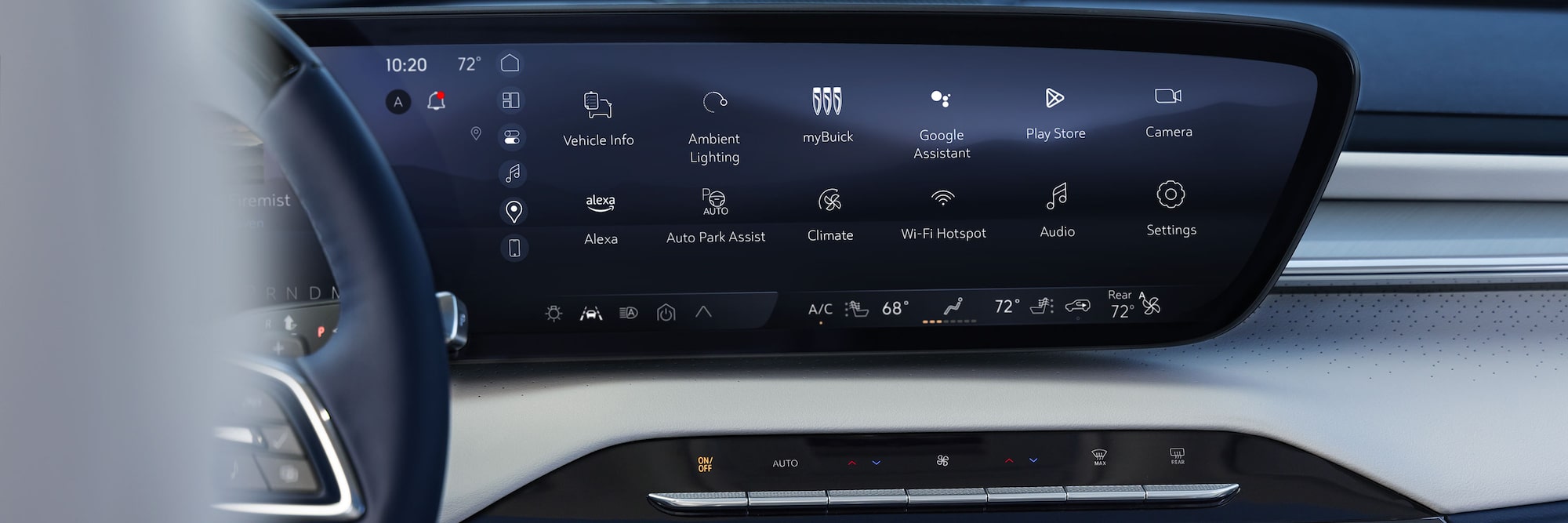
Buick Infotainment: Google Built-in Guide
?? At a glance – Buick Google system
Google built-in comes on most new Buicks (LT and above). You get Google Maps, Assistant, and Play right on the dash – no phone required. Setup takes about 10 minutes: sign into your Google and GM accounts, sync contacts, and you’re live. Wireless Apple CarPlay and Android Auto are also included. Over-the-air updates keep it fresh. Test it at Elk Grove Buick GMC.
Before you start

You’ll need two things: your GM account (the email you used at purchase, same as myBuick app) and a Google Account (Gmail works). If you don’t have a Google Account, create one on your phone – takes two minutes. Keep your phone nearby; you’ll use it to sync contacts and verify.
Difficulty: intermediate • Time: ~10 minutes • No tools needed.
Setup wizard – first time
When you start the vehicle, the infotainment screen launches a Setup Wizard. It walks you through signing into Google, pairing Bluetooth, and enabling services. You can skip steps, but you’ll get reminders. Vehicle must be in PARK – if you drive off, the wizard pauses and returns next time.
Official Google setup guide (Buick support)

Sync phone contacts (so Google can read texts)
iPhone
- Settings ? Contacts ? Accounts ? Add Account ? Google
- Sign in, turn on “Contacts” toggle.
- Optional: “Import SIM Contacts” at bottom of Contacts screen.
Android
Contacts sync automatically with your Google Account. Just make sure you’re logged into the same account in the car.
Sign in to your Google Account
Tap the profile name on the home screen ? “Manage Profile” ? add account. Or when you open Maps/Play you’ll be prompted. Review the Google Terms the first time (only once).
If you add Google after the wizard, your profile name won’t automatically change – you can edit it in Manage Profile.
Enable Google Assistant & text reading
From the home screen:
- Select Settings (gear icon).
- Scroll to bottom ? choose Google.
- Select Google Assistant ? turn everything ON.
- Also tap “Read and Respond to Vehicle Notifications” – ON.
Now say “Hey Google, read my messages” or “set temperature to 72”.

Personalize your system
Rearrange icons
Press & hold any app ? drag to new spot.
App tray shortcuts
Drag an app into the bottom tray to replace a shortcut.
Download apps
Open Google Play (Wi-Fi or data plan required). Spotify, Audible, etc.
Save radio stations
While listening, tap the ? or hold an empty favorite slot.
Google Maps
Tap Maps icon, accept permissions. Find charging stations, gas, food.
Sign in to your GM account
Use the same email you gave the dealer. This enables roadside assistance, service scheduling, and myBuick perks. You can store up to 8 profiles. Guest mode works but resets each drive.
Beyond basics: 30-inch display & premium audio

In models like the 2025/2026 Enclave, the 30-inch ultrawide screen is the centerpiece. It supports Google built-n, wireless CarPlay, and even video streaming while parked. Available Bose Performance Series with 16 speakers brings concert sound. And with the built-in 4G LTE Wi-Fi hotspot, passengers can stream on their own devices.
Over-the-air updates mean your system improves over time – no dealership visit required.
Frequently Asked Questions
Do I need a Google Account to use Buick infotainment?
No, guest mode works. But signing in unlocks personalized maps, app downloads, and saved settings. Your choice.
How do I connect my iPhone contacts to Google built-in?
On iPhone: Settings ? Contacts ? Accounts ? Add Google account, login, enable Contacts. Android syncs automatically.
Can I download Spotify or Waze?
Yes, from Google Play on the screen. Some require subscriptions. You also have Apple CarPlay/Android Auto if you prefer.
Does Google Assistant read my texts?
After you turn on "Read and Respond" in Settings ? Google ? Assistant, it will read new messages aloud and you can reply by voice.
What’s the difference between Google built-in and CarPlay?
Google built-in runs natively (no phone needed). CarPlay mirrors your iPhone. Buick gives you both – you decide.
How often does the system update?
Over-the-air updates happen automatically when parked. You’ll always have the latest features without visiting the dealer.
Can I rearrange apps on the home screen?
Press and hold any app icon ? drag to new spot. You can also drop favorites into the app tray for one-tap access.
Where can I test the infotainment system near Sacramento?
At Elk Grove Buick GMC, 8450 Laguna Grove Dr., Elk Grove, CA 95757. Call 916-691-2700 for a demo or just drop by.
Is the 30-inch screen only on Enclave?
It’s available on Enclave, and other models like Envision have large screens too. Come see them in person.
Does Google built-in work without a data plan?
For full functionality (streaming, live traffic) you need a Wi-Fi hotspot or connected phone. Basic off-line maps work.

Visit us at 8450 Laguna Grove Dr., Elk Grove, CA
Elk Grove Buick GMC | Sales: 916-691-2700 | 8450 Laguna Grove Dr., ELK GROVE, CA 95757
© 2025 Elk Grove Buick GMC. All required links included: New Buick | Specials | Trade | Credit app | GMC showroom | Service | Buick support